Arranging the panels
Everything in the main window that is not the Workspace is a panel: the Browser, the Outline, Action Items, Notes, Properties, and Search Results. They all work the same way, and the arrangement you settle on is remembered between sessions.
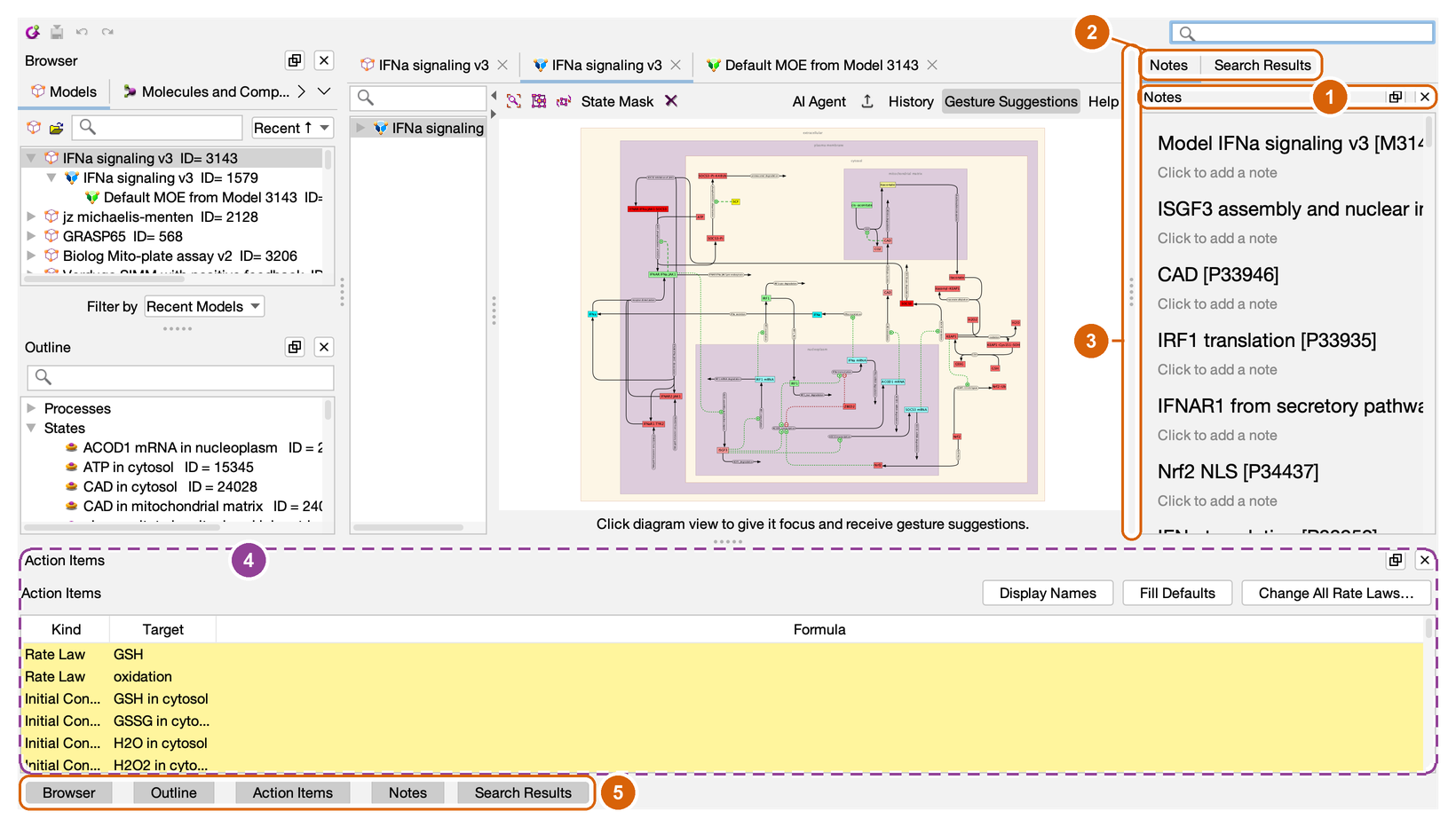
Click the picture to see it full size.
- A panel's header: its name on the left and, on the right, the pop-out button and the hide button.
- Two panels sharing an edge, as tabs.
- A divider — drag it to resize.
- Action Items, on the bottom edge.
- The panel bar.
Where panels go
Panels open on an edge of the window: the left edge has an upper and a lower slot, and the right and bottom edges have one each. The Workspace in the middle stays put whatever you do with the panels — it cannot be hidden, moved, or split.
Each panel has a home edge:
| Panel | Home edge | Shows |
|---|---|---|
| Browser | Left (upper) | Models, molecules and complexes, processes, places and experiments |
| Outline | Left (lower) | The states and processes of whatever the current tab is showing |
| Action Items | Bottom | Rate laws, initial conditions and boundary conditions of the current Model Realization that still need filling in |
| Notes | Right | Notes on the current model and on each of its states and processes |
| Properties | Right | The properties of whatever is selected in the diagram or the Outline, or of an object opened from the Browser |
| Search Results | Right | What the search box at the top right matches |
Two panels on the same edge share it as tabs (2) — in the picture, Notes and Search Results on the right. There is no fourth arrangement to learn: a panel is hidden, docked on an edge, or popped out into its own window.
Showing and hiding
The panel bar (5) along the bottom has a button for every panel, grouped by edge, and the View menu lists the same six names with a tick beside each one on screen. Click either to show a panel or to hide it; the ✕ in a panel's header (1) hides it too. Hovering a bar button pulses a rectangle over the panel it belongs to.
A panel with nothing to show leaves the screen on its own and gives its space back — the Outline when no tab is open, Notes when nothing but a MOE is open, Search Results when the box is empty. Its button stays in the bar, and its tooltip says what the panel is waiting for. Click it anyway and the panel returns with the same sentence, so nothing is ever unreachable; once it has content again it keeps its place. A panel you hid yourself stays hidden, whatever turns up.
Action Items works the other way round. It opens itself when a Model Realization has something that needs filling in — blank rate laws, initial conditions, or boundary formulas — since a realization in that state cannot be simulated. Hide it and it stays hidden while those items remain; it asks again only when something new comes up.
Properties, the on-demand panel
Properties opens when you ask for an object's properties — right-click a state, a process, an arrow, or a model and choose Properties, or double-click a molecule or a place in the Browser — and shows that object, in a window of its own the first time. It keeps one habit of the dialog it replaces: closing its window puts it away instead of docking it.
It is a panel all the same. Dock it, with the Dock button in its header, and it takes an edge like any other panel, showing whatever is selected in the diagram or the Outline and following the selection from tab to tab. Docked or in a window, wherever you last had it is where it opens the next time — from a Properties menu item, its bar button, or the View menu alike. With nothing selected it says so and keeps its place, rather than leaving the screen the way Notes or Search Results do.
Resizing
Drag a divider (3). The dividers are wide enough to take hold of and carry a grip so they can be seen, and a panel cannot be dragged down to a sliver. Sizes are remembered along with everything else.
Moving a panel to another edge
Right-click a panel's header and choose Move to Left (upper), Move to Left (lower), Move to Bottom, or Move to Right. Moving a hidden panel also shows it. There is deliberately no drag-and-drop docking: four menu items cannot produce an arrangement you did not mean.
Popping a panel out
The pop-out button in a header (1) sends the panel to a window of its own, titled ProcessDB — Notes, or whichever panel it is. That is the arrangement for two monitors: the diagram filling one screen, the Notes or the Browser on the other.
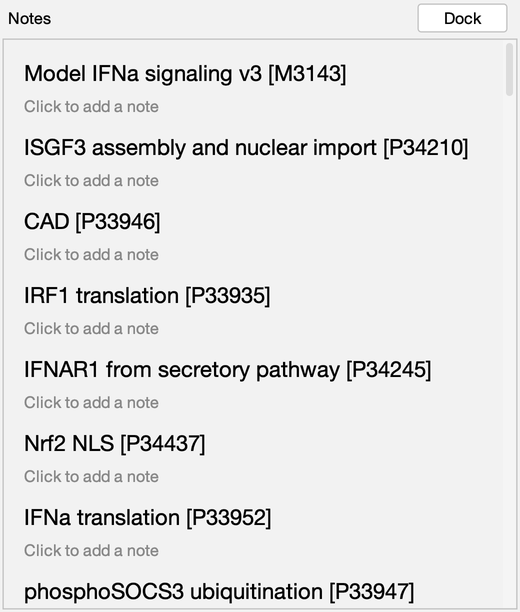
In its window the same button reads Dock and brings the panel back to its edge; closing the window does the same. Closing never hides a popped-out panel — Properties, whose window closes the way its dialog did, is the one exception — so its bar button always means one thing: on screen, or not. A popped-out panel also stays on screen when it runs out of content; it leaves only when you dock or hide it.
The window opens at the size you last dragged it to, remembered between sessions like the rest of the arrangement, and Reset Layout puts the sizes back along with everything else.
The three layouts
View → Layout offers three arrangements, for the three things a modelling day is made of:
| Layout | Shows |
|---|---|
| Build | Browser and Outline beside the diagram — finding things, and seeing the structure of the model you are building. This is how ProcessDB starts. |
| Simulate | Nothing docked: the diagram gets the whole window, and the Parameter Explorer and its graph windows take the second monitor. |
| Write | Notes beside the diagram; everything else out of the way. |
A tick marks the layout currently on screen; once you have changed something, none is ticked. A layout decides which panels are shown and where, and leaves the sizes you have dragged alone.
Reset Layout
View → Layout → Reset Layout puts every panel back where it started, sizes included, and docks any popped-out windows. It is always there and it always works, so there is no arrangement you cannot get back from.
What is remembered
The whole arrangement — which panels are shown, on which edge, at what size, and which are popped out — is saved on your computer as you go, and is back the next time you launch. It is not part of any model, so a colleague opening the same model sees their own arrangement.